Building Programs
SuperBOL Studio allows you to directly build your COBOL programs with GnuCOBOL.
We recommend that a version of GnuCOBOL that is at least as recent as version 3.2 be available on the system running VSCode. Debug and coverage features respectively assume that gdb and gcov are installed.
On Windows systems, users may employ dedicated installers that are available here. Linux users may rely on their favorite package manager and install gnucobol.
All the actions describe below must start with an opened COBOL file, so that VSCode knows your configurations are done for the COBOL language, with the SuperBOL extension.
Simple Build
If you’d like to build your COBOL programs with the default options from cobc:
press Ctrl+Shift+B, or click on the
Terminal > Run Build Task...menu option.you will then be presented with several default build options, and select the one you wish to run:

Defaults build options
These options have the following effects, assuming you opened PROG.cob:
SuperBOL: build: this option will build your program as an executable, without debugging informations, it will execute the followingcobccommand:
cobc -x -fformat=auto -std=default -ext cpy -ext cbl -ext cob PROG.cob -I .SuperBOL: build (debug): this option will build your program as executable, with debugging informations, it will execute the followingcobccommand:
cobc -x -ftraceall -g -fformat=auto -std=default -ext cpy -ext cbl -ext cob PROG.cob -I .SuperBOL: build (module): this option will build your program as a module, without debugging informations, it will execute the followingcobccommand:
cobc -m -fformat=auto -std=default -ext cpy -ext cbl -ext cob PROG.cob -I .
Settings that can change the execution of build tasks
Some of the User or Workspace settings have an influence on the commands runned by the build tasks. You can look at the list of available options to learn more about them.
The options that have an effect on the build tasks are:
superbol.cobol.dialect: it will set the
-stdoption ofcobcsuperbol.cobol.sourceFormat: it will set the
-fsource-formatoption ofcobc.superbol.cobol.copybooks: it will add
-Iflags tocobc, one for each value in the array.superbol.cobcPath: it will set the
cobcpath that will be executed to build your programs.
Configuring a build task
If you wish to perform more complex building tasks, you can create your own building task derived from any SuperBOL provided build tasks.
To do so you can:
open the VSCode command palette with Ctrl+Shift+P
select the option
Tasks: Configure Task:
you should then be presented with the list of SuperBOL defaults building tasks:

from this list you can select any of these task, but to reduce the amount of options to be edited, you can choose the one that fits the best the build actions you’d like to run, if unsure you can select
SuperBOL: build
VSCode will then automatically create a .vscode/tasks.json file, filled with the task you selected. If the file already existed the task you selected will then be added to the list of tasks.
Assuming you selected the SuperBOL: build (debug) task earlier you should be presented with the following content:
{
    "version": "2.0.0",
    "tasks": [
        {
            "type": "superbol",
            "forDebug": true,
            "forCoverage": false,
            "executable": true,
            "extraArgs": [],
            "problemMatcher": [
                "$gnucobol",
                "$gnucobol-warning",
                "$gnucobol-error",
                "$gnucobol-note"
            ],
            "group": "build",
            "label": "SuperBOL: build (debug)"
        }
    ]
}
The different fields available in this build configuration are also available in the other provided build configurations, but with different values. Here is a description of the meaning of all fields in this configuration:
"type": This field informs VSCode that this configuration is to be used with the SuperBOL extension"forDebug": if set totrue, then the program will be build with debugging informations, otherwise the program will be build as a release program."forCoverage": if set totrue, then the program will be build with coverage informations, otherwise the program will be build as a normal program."executable": if set totrue, then the program will be build as an executable binary, otherwise the program will be build as a module to be executed with a COBOL runner (usuallycobcrunfor GnuCOBOL modules.)"extraArgs": you can add strings to this array that will be passed to the GnuCOBOL compiler to be used when building your program."problemMatcher": this field is not to be edited, it enables VSCode to highlight the sources of a build error."group": this field should also not be edited, it informs VSCode that this task is used to build a program."label": this field contain the name of the build task, it might be used in other VSCode files configurations, so you can set it to the name you see fit the best."cobcPath": this field is hidden by default, but you can set the path to yourcobccompiler if it is not directly available in your PATH.
With all these fields you should be able to configure your build task to best fit your needs.
Building with a custom configuration
Once you have configured your build task, you can use it to build your COBOL programs.
As an example let’s suppose that you have the following task defined:
{
    "version": "2.0.0",
    "tasks": [
        {
            "type": "superbol",
            "forDebug": true,
            "forCoverage": false,
            "executable": false,
            "extraArgs": [],
            "problemMatcher": [
                "$gnucobol",
                "$gnucobol-warning",
                "$gnucobol-error",
                "$gnucobol-note"
            ],
            "group": "build",
            "label": "SuperBOL: build (module + debug)"
        }
    ]
}
To use your customized build task task:
open the COBOL program you wish to build
press Ctrl+Shift+B
select the label of your custom build task (
SuperBOL: build (module + debug)in our example):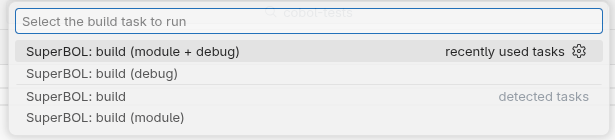
Selecting a default build task
If you have a task you wish to be executed as the default build task:
press Ctrl+Shift+P
select
Tasks: Configure Default Build Taskselect the task you wish to be executed as the default build task
open your COBOL program sources
press Ctrl+Shift+B
VSCode will execute automatically the task you selected as default
Debugging your programs
Once your programs are build, you may wish to check Debugging Programs to see how you can debug your COBOL programs.
Examples of custom configurations
Here are a few examples of configurations you might want to set up. In your .vscode/tasks.json you should add them to the "tasks" array.
Building GnuCOBOL module with debugging informations
{
    "type": "superbol",
    "forDebug": true, // generate debug informations
    "forCoverage": false,
    "executable": false, // build a module
    "extraArgs": [],
    "problemMatcher": [
        "$gnucobol",
        "$gnucobol-warning",
        "$gnucobol-error",
        "$gnucobol-note"
    ],
    "group": "build",
    "label": "SuperBOL: build (module + debug)"
}
Building GnuCOBOL executable to check coverage
{
    "type": "superbol",
    "forDebug": false,
    "forCoverage": true, // generate coverage informations
    "executable": true, // build an executable
    "extraArgs": [],
    "problemMatcher": [
        "$gnucobol",
        "$gnucobol-warning",
        "$gnucobol-error",
        "$gnucobol-note"
    ],
    "group": "build",
    "label": "SuperBOL: build (coverage)"
}
Sending extra arguments to cobc
{
    "type": "superbol",
    "forDebug": false,
    "forCoverage": false,
    "executable": true,
    "extraArgs": [
        "-fec=all" // pass `-fec=all` to `cobc`
    ],
    "problemMatcher": [
        "$gnucobol",
        "$gnucobol-warning",
        "$gnucobol-error",
        "$gnucobol-note"
    ],
    "group": "build",
    "label": "SuperBOL: build (all exceptions)"
}