Workspace Configuration
SuperBOL Studio can be used both on single COBOL files, or on a full COBOL project, usually called a Workspace in VSCocde language.
Editing an Existing Project as a Workspace
To start using the extension on an existing project, open its folder in VS Code (File > Add Folder to Workspace…).
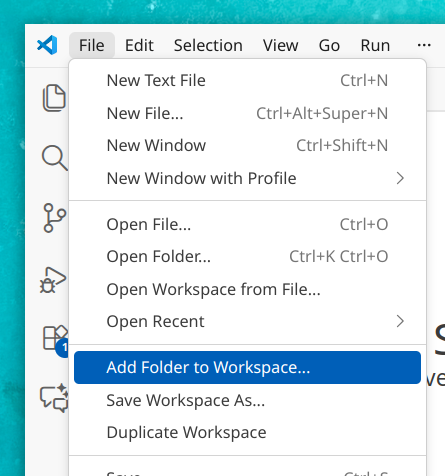
The extension will start automatically whenever the folder contains files with usual COBOL filename extensions (.cob, .cbl, .cpy, .cbx).
Once the extension is started, COBOL sources should appear with colorization:
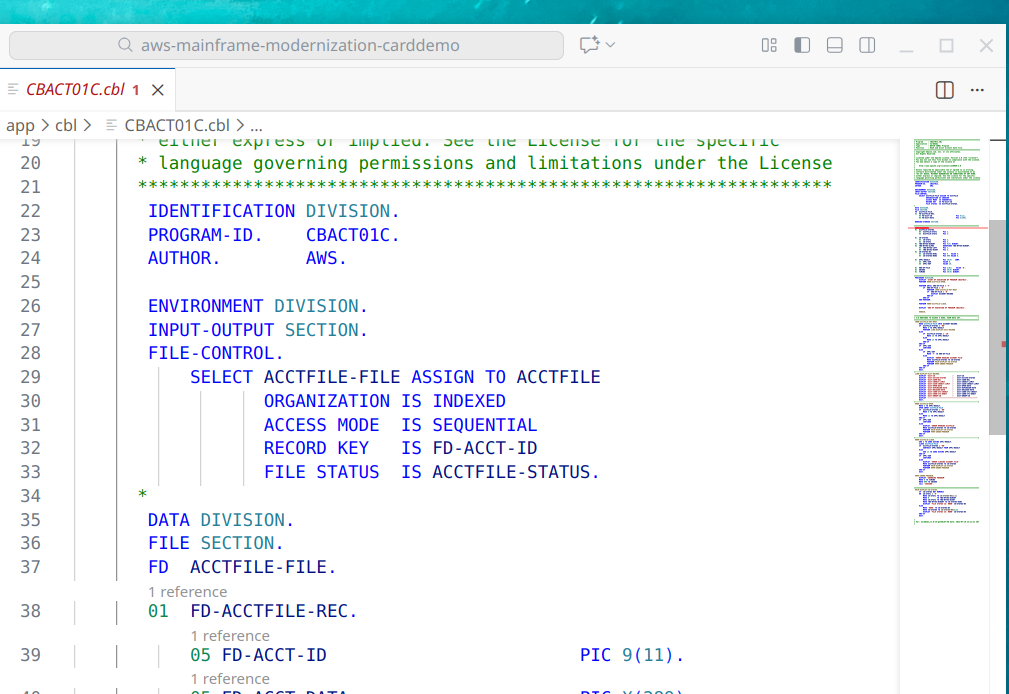
The extension will try to parse the sources, and resolve COPY statements. If it fails, it will display problems:
- the number of problems found after the file name in the file explorer
- these problems are shown directly in the sources
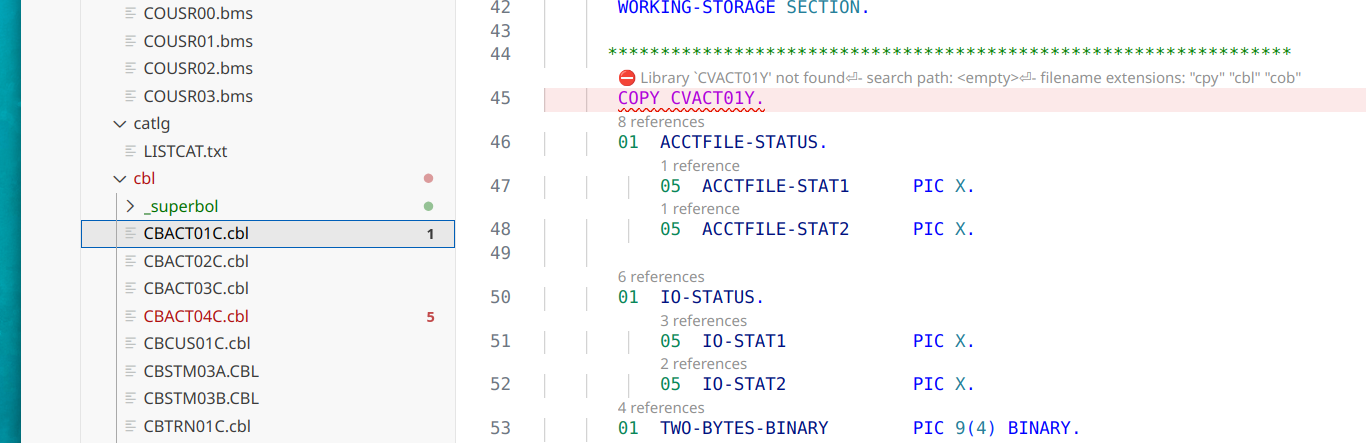
Note that, in our case, we use the “Error Lens” VSCode extension to inline errors in the source code. There are many similar extensions to improve the visualization of problems.
You can also directly go to the first problem, using Ctrl+Shift+M:
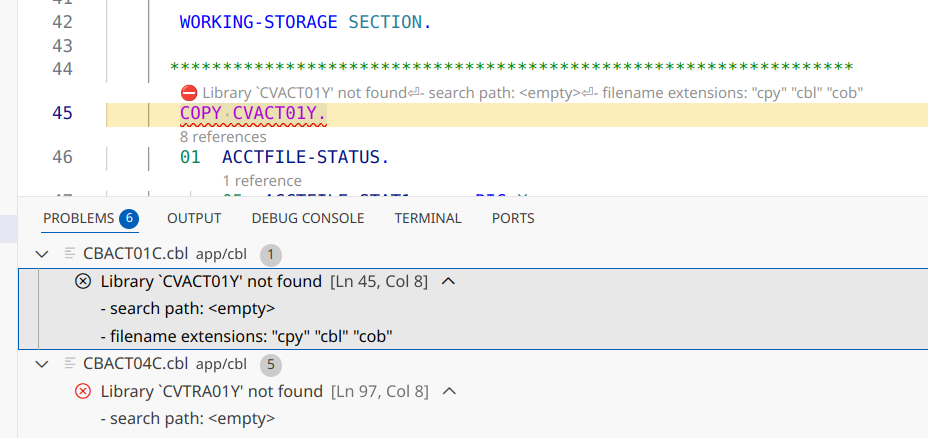
Such problems usually come from a bad configuration of the workspace for the COBOL dialect used by this project. So we need to configure it to make the extension work correctly. We will see this in the next section.
Configuring the Extension for the COBOL Project
Open the settings (File > Preferences > Settings, or Ctrl+,), and start typing “superbol…”. You will be presented with a screen that resembles:
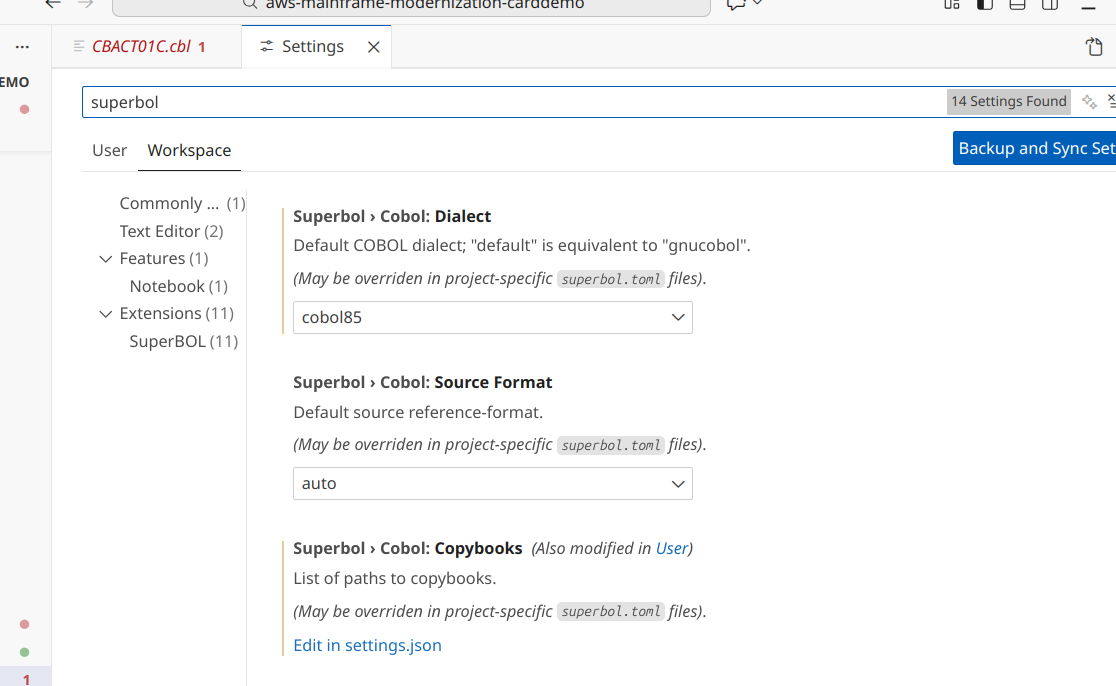
Beware that there are several ways to configure settings:
User settings: these are the default settings when the workspace is not configured. On the picture above, they are on the left tab “User”. They are stored in the user profile, typically in
$HOME/.config/Code/User/settings.json.Workspace settings: these are the settings specific to this workspace. They are the ones you probably want to configure now. On the picture above, they are on the right tab “Workspace”. They are stored in a file
.vscode/settings.jsonat the root of the workspace.Additionnaly, SuperBOL Studio can use its own configuration file for some settings, located in a file superbol.toml at the root of the project. This file is typically useful if you plan to use SuperBOL tools on the command-line in this project. VSCode will sometimes warn you if you are trying to configure settings internally in VSCode when there is also a
superbol.tomlfile.
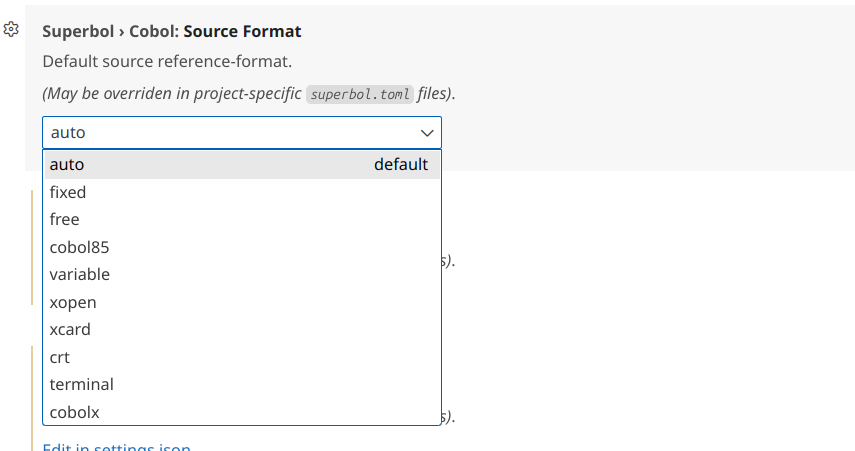
In our example, the source format was correctly inferred. If it is not your case, you can change the Source Format option:
- The default reference source-format
"superbol.cobol.sourceFormat"Whenautois selected, which is the default, SuperBOL (and GnuCOBOL) will automagically try to guess whether the source is infreeorfixedformat. Other source formats need to be configured explicitly.
In our case, the extension complains about not finding some copybooks. Two settings are available to control how the extension looks up for copybooks:
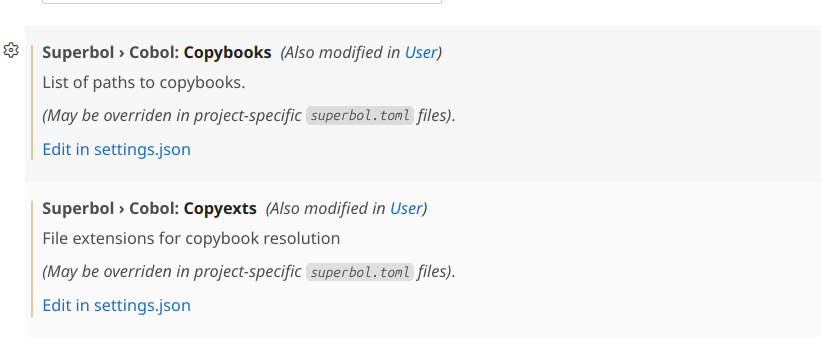
Both options have to be configured in JSON by modifying the settings.json file, so you need to click on “Edit in settings.json”.
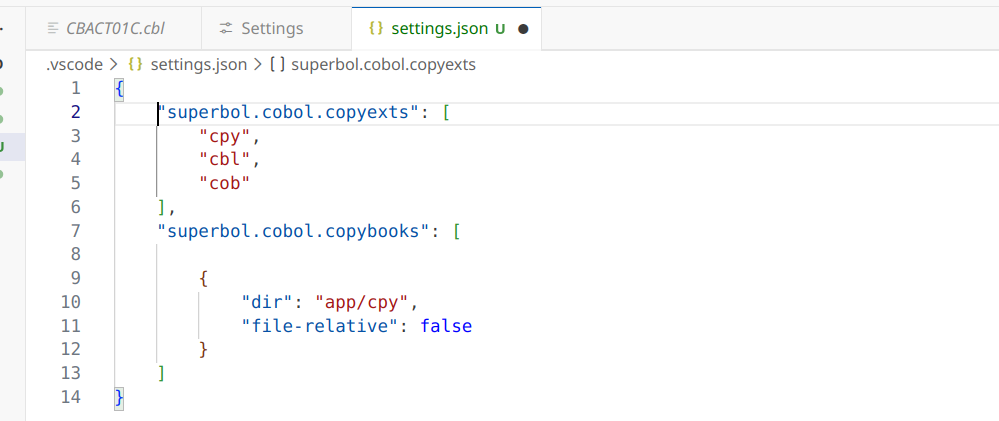
.vscode/settings.jsonThe path to copybooks “superbol.cobol.copybooks”. This is a list, where each entry describes an element of the search path where your copybooks will be looked for. Each entry must contain a field “dir”, and an optional field “file-relative”.
If the directory you want to specify (where copybooks are located) is a path starting from the root of the workspace, or an absolute path, you can skip the
file-relativefield, or set it tofalse.If the directory you want to specify is a path relative to the directory containing the specific COBOL source with the
COPYstatement, you should set thefile-relativefield totrue.
The copybook extensions “superbol.cobol.copyexts”. To configure this setting, you will need to select
Edit in settings.json. This is a list, where each entry describes a file extension if the copybook name cannot be found as-is (for exampleCOPY "mycpy.lib"). In SuperBOL, thedefaultoption corresponds to GnuCOBOL’s default, which is["cpy","cbl","cob"](searched in upper-case first, and then in lower-case).
Do not forget to save the file (with Ctrl+S). As soon as it is saved, the extension will restart the LSP to re-analyze the COBOL sources.
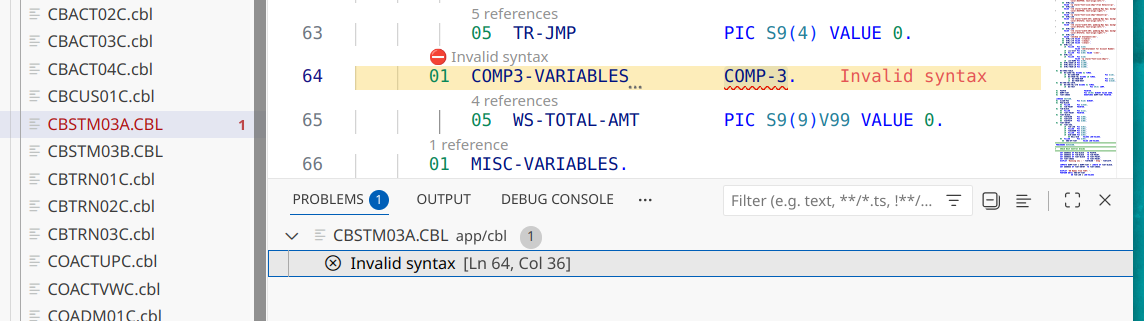
Now, the extension gives us a different kind of errors, because it couldn’t understand the syntax:
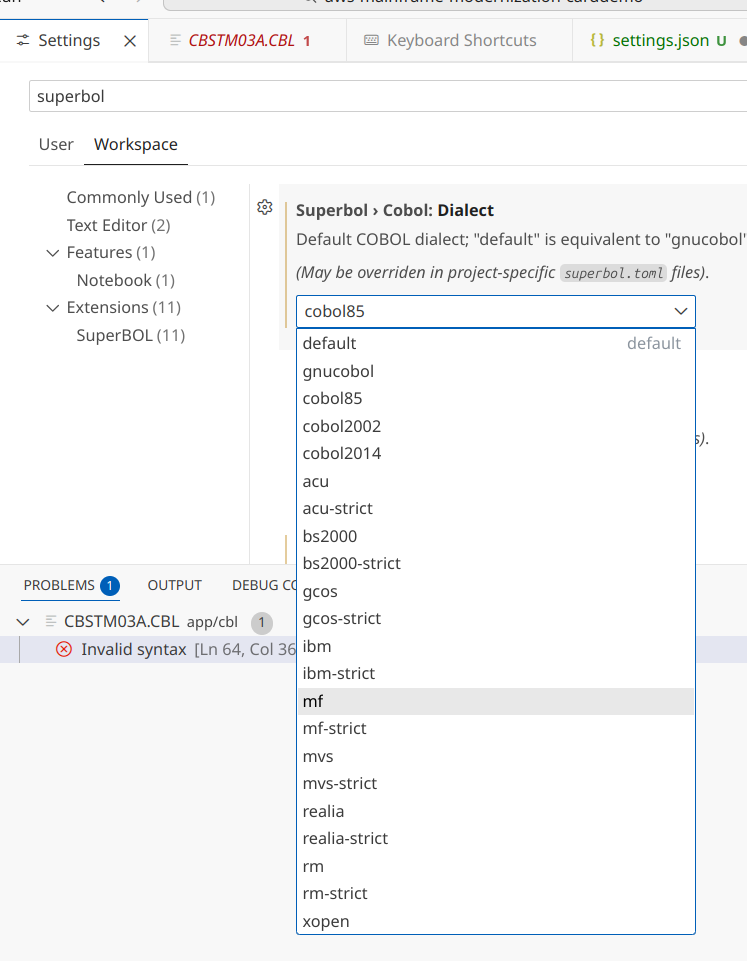
- The COBOL dialect used in the project
"superbol.cobol.dialect"for a documentation on every available dialect). In SuperBOL, thedefaultdialect corresponds to GnuCOBOL’s default, that supports many features from dialects such asCOBOL2014,IBM,MicroFocus(mf), orGCOSfor instance;
Syntax diagnostics
[!NOTE]
Syntax checks performed by SuperBOL Studio currently cover the
COBOL85dialect, and some constructions of more recent dialects supported by GnuCOBOL. Reporting of such diagnostics is currently disabled for dialects other thanCOBOL85to avoid misleading developers with false diagnostics about syntax errors.Reporting can be re-enabled for every dialect by setting the
Force Syntax Diagnosticsflag in SuperBOL configuration settings.
Collaborating with other developers
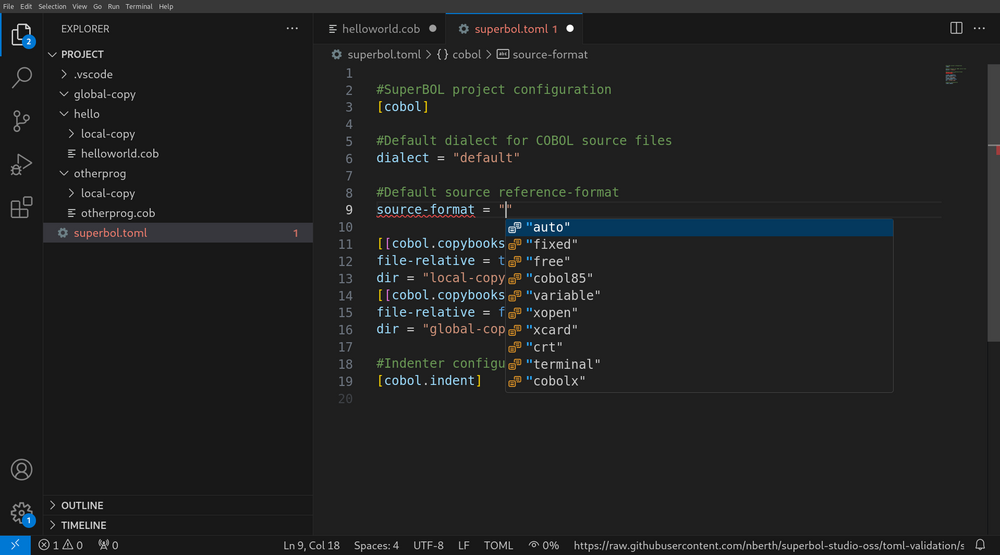
At this point, the settings for your project are stored and managed by VS Code. However, you may plan to collaborate with developers that do not use this editor. For instance, they might want to use our mode for GNU/Emacs, which is located here. Then, we advise you to let SuperBOL Studio store the configuration in a superbol.toml file that will be located at the root of the project.
You can make the extension write your current project configuration into a superbol.toml by entering the command palette (View > Command Palette…, or press Ctrl+Shift+P), and then selecting the command SuperBOL: Write Project Configuration.

This will save a superbol.toml file at the root of each currently opened project directory. Such a file will not store any user-specific settings, so you can now safely put them under source control. Extensions dedicated to the edition of TOML files, such as tamasfe.even-better-toml, provide the same level of assistance as when you edit .vscode/settings.json.
[!TIP]
Install the
OCamlPro.SuperBOL-studio-packextension to get SuperBOL Studio andtamasfe.even-better-tomlaltogether.
superbol.toml